Troubleshooting: Ocean Appears Too Dark
Problem Description
After importing VROcean into a new URP project, the ocean surface appears significantly darker than expected, and light reflections are missing from the water surface.
| Expected Result | Actual Problem |
|---|---|
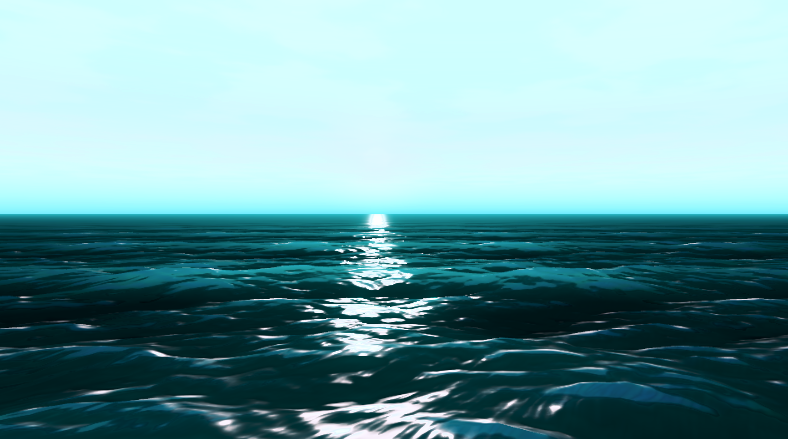 | 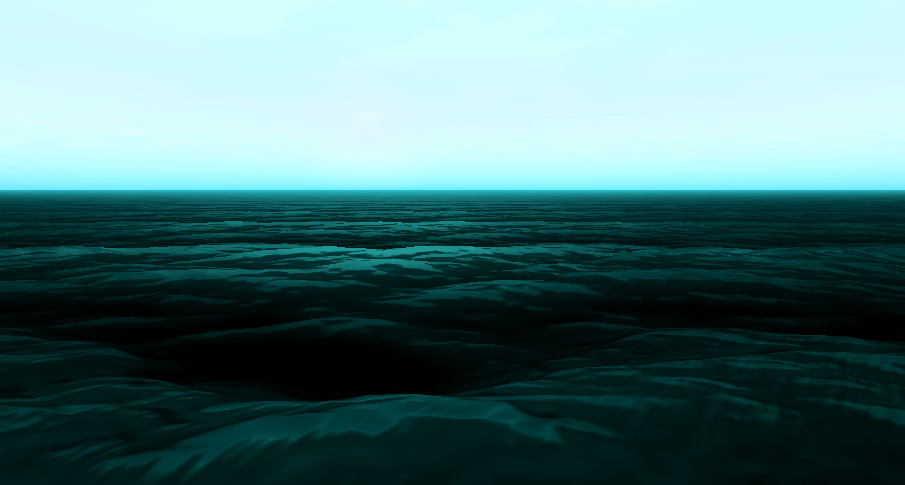 |
If your scene looks like the image on the right instead of the left, follow the steps below to fix this issue.
Solution
This issue is typically caused by URP rendering settings that need to be configured correctly. Follow these three steps:
Step 1: Configure the Default Render Pipeline Asset
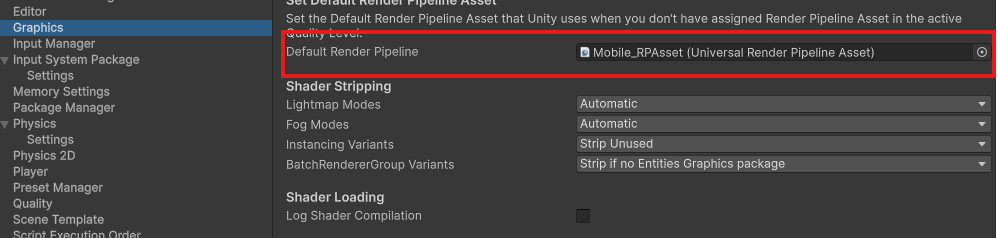
- Go to Edit → Project Settings → Graphics
- Locate the Default Render Pipeline field
- Click on the assigned URP Asset to select it
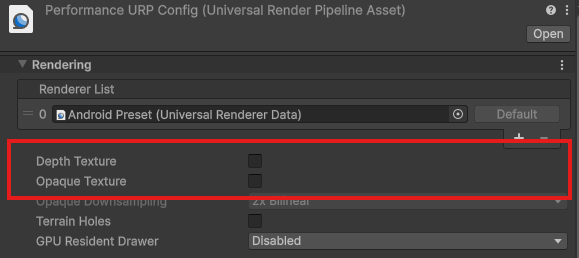
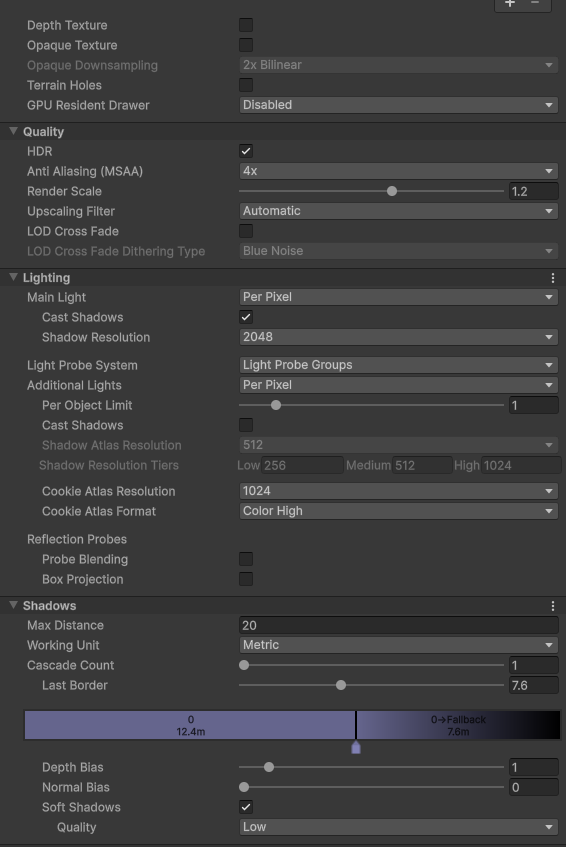
- In the Inspector window of this asset, disable both:
- Depth Texture
- Opaque Texture
Step 2: Verify Quality Settings
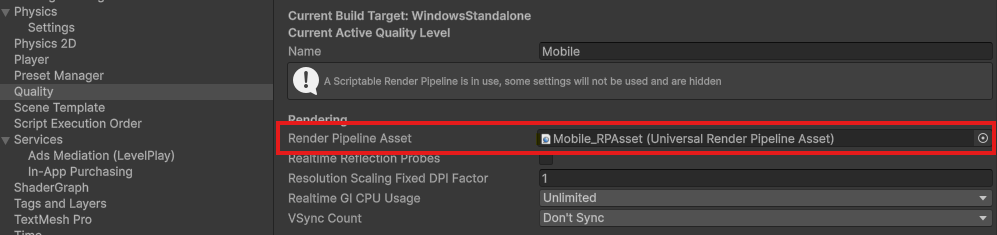
- Go to Edit → Project Settings → Quality
- Locate the Render Pipeline Asset field
- Ensure this is set to the same URP Asset you configured in Step 1
Step 3: Set Rendering Path to Forward
- In the URP Asset from Steps 1 and 2, find the Renderer List section
- Click on the Universal Renderer Data asset in the list
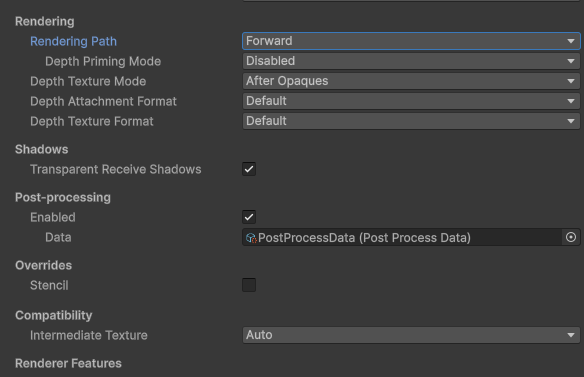
- In the Inspector of this Renderer Data asset, locate the Rendering section
- Set Rendering Path to Forward
Optimal Settings Overview
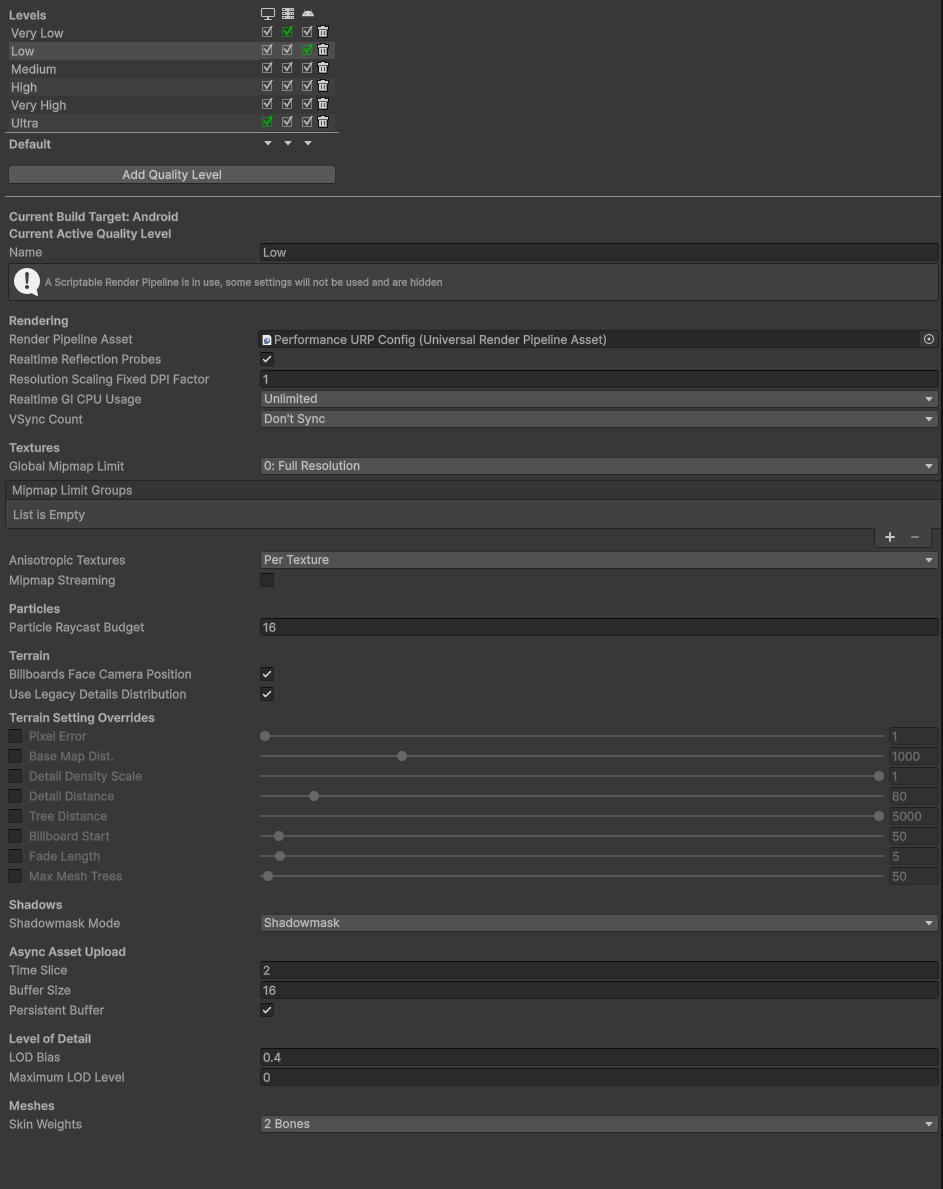
For reference, here are the recommended settings for all three configuration panels:
| Quality Settings | Renderer Data Settings |
|---|---|
 |  |
After applying these settings, your ocean should display correctly with proper lighting and reflections.