Quick Setup
Get a working ocean scene in under 5 minutes. This guide covers the minimal setup required to see waves in your project.
Prerequisites
- VROcean installed (Installation Guide)
- A Unity project with URP configured
- An empty scene or existing scene to add the ocean to
Step 1: Create the Scene System
The SceneSystem is the central manager that coordinates all ocean components.
- Create an empty GameObject in your scene
- Name it
OceanSystem - Add the
SceneSystemcomponent
Alternatively, add it via code:
using UnityEngine;
using PlatypusIdeas.VROcean.Runtime.Scripts.Scene;

public class OceanSetup : MonoBehaviour
{
    void Start()
    {
        var oceanSystem = new GameObject("OceanSystem");
        oceanSystem.AddComponent<SceneSystem>();
    }
}
Step 2: Create the Ocean Simulator
The OceanSimulator generates wave displacement and normal textures using FFT.
- Create a child GameObject under
OceanSystem - Name it
OceanSimulator - Add the
OceanSimulatorcomponent - Add the
SurfaceLodRenderercomponent
Your hierarchy should look like this:
OceanSystem
└── OceanSimulator
Step 3: Create a Biome Profile
The AquaticBiomeProfile stores all configuration for waves, lighting, and materials.
- In the Project window, right-click and select
Create > Oceanic > Environment Profile - Name it
DefaultOcean - Select the new profile to view it in the Inspector
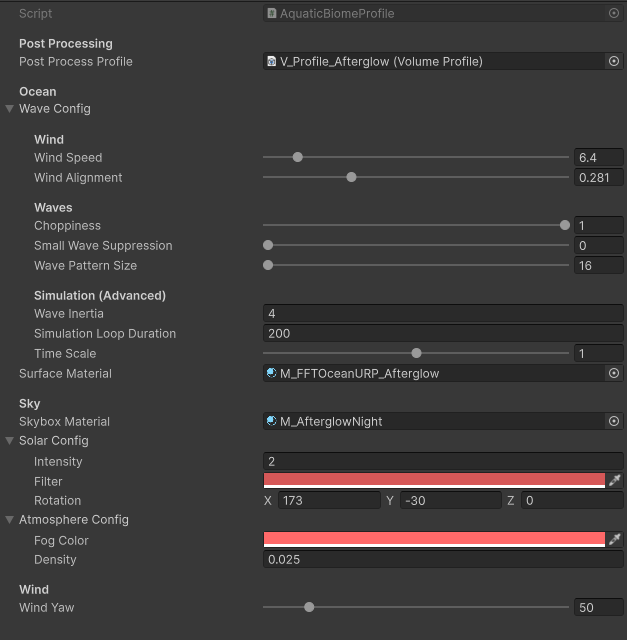 A new AquaticBiomeProfile with default settings
Assign the Ocean Material
- Locate the included ocean material at
Assets/PlatypusIdeas/VROcean/Runtime/Materials/M_Ocean.mat - Drag it into the
Surface Materialfield of your biome profile
Assign a Skybox Material
- Locate an included skybox material (e.g.,
M_DaySky.matorM_NightSky.mat) - Drag it into the
Skybox Materialfield
Step 4: Create a Post Processing Volume
- Create an empty child gameobject under SceneSystem.
- Name it PostProcessVolume. Or whatever you like.
- Add a
Volumecomponent.
Step 5: Create a Reflection Probe
- Create an empty child gameobject under SceneSystem.
- Name it BakedReflectionProbe. Or whatever you like.
- Add a
Reflection Probecomponent.
Step 6: Wire Up the Components
Now connect everything in the SceneSystem inspector:
| Field | Assignment |
|---|---|
| Ocean Compute | Drag the OceanSimulator GameObject |
| Ocean Quadtree Renderer | Drag the SurfaceRenderer GameObject |
| Target Profile | Drag your DefaultOcean profile asset |
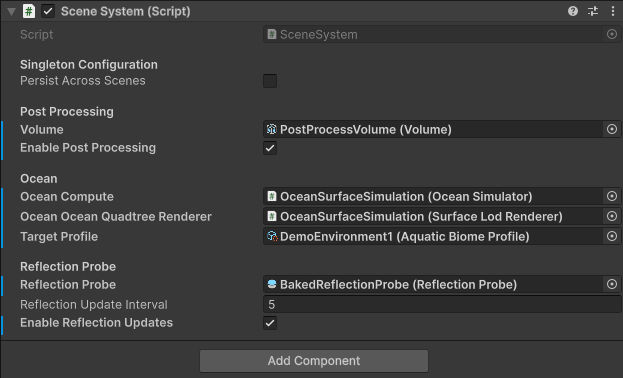 SceneSystem with all references assigned
Step 7: Configure the Surface Renderer
Select the SurfaceRenderer GameObject and configure:
| Field | Value |
|---|---|
| Surface Material | Drag the same M_Ocean.mat material |
| Ocean Size | 1024 (default, adjust as needed) |
| Quality | Medium (good starting point) |
Step 9: Add Lighting
VROcean uses the scene's directional light for sun direction and color.
- Add a Directional Light if one doesn't exist (
GameObject > Light > Directional Light) - Position and rotate it to your desired sun angle
- The biome profile's
Solar Configsection can override these settings
Step 9: VR Camera
- Locate the prefab
VR_Player_CameraatAssets/PlatypusIdeas/VROcean/Samples/Prefabs - Delete the default camera in your scene
- Drag and drop the
VR_Player_Cameraint othe scene
Step 10: Enter Play Mode
Press Play. You should see animated ocean waves.
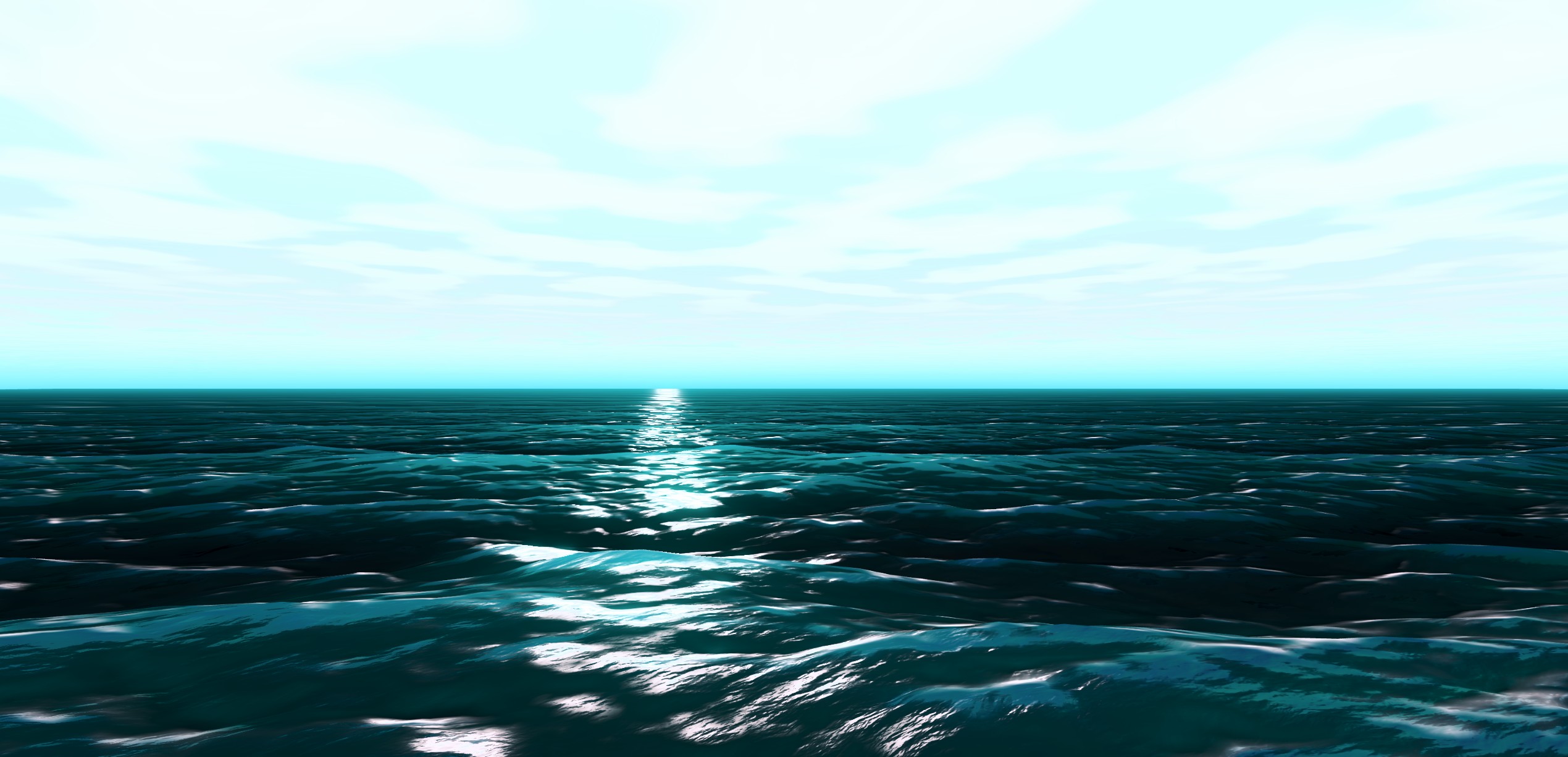 A working ocean scene from a demo Scene
If you see a flat plane or no water, check the Troubleshooting section below.
Complete Hierarchy
Your final hierarchy should look like this:
Scene
├── OceanSystem
│   ├── OceanSimulator
│   └── PostProcessVolume
│   └── BakedReflectionProbe
├── Directional Light
└── VR_Player_Camera
Using the Prefab (Recommended)
VROcean includes a pre-configured prefab for faster setup:
- Navigate to
Assets/PlatypusIdeas/VROcean/Samples/Prefabs/ - Drag
OceanBiomeManager.prefabinto your scene - Assign your biome profile to the
SceneSystemcomponent - Enter Play Mode
The OceanBiomeManager prefab has all components pre-wired.
Minimal Code Setup
If you prefer setting up via code, here is a complete example:
using UnityEngine;
using PlatypusIdeas.VROcean.Runtime.Scripts.Scene;
using PlatypusIdeas.VROcean.Runtime.Scripts.Ocean;

public class OceanBootstrap : MonoBehaviour
{
    [SerializeField] private AquaticBiomeProfile profile;
    [SerializeField] private Material oceanMaterial;

    void Start()
    {
        // Create root
        var root = new GameObject("OceanSystem");

        // Add simulator
        var simGo = new GameObject("OceanSimulator");
        simGo.transform.SetParent(root.transform);
        var simulator = simGo.AddComponent<OceanSimulator>();
        simulator.Profile = profile;

        // Add renderer
        var renderGo = new GameObject("SurfaceRenderer");
        renderGo.transform.SetParent(root.transform);
        var renderer = renderGo.AddComponent<SurfaceLodRenderer>();
        renderer.SurfaceMaterial = oceanMaterial;

        // Add and configure scene system
        var sceneSystem = root.AddComponent<SceneSystem>();
        // Note: SceneSystem finds child components automatically if using the prefab workflow
    }
}
Adjusting Wave Settings
With the ocean running, you can adjust wave behavior in real-time:
- Select your biome profile asset
- Expand the
Wave Configsection - Adjust
Wind Speedto change wave height (0-64 m/s) - Adjust
Choppinessto change wave sharpness (0-1) - Changes apply immediately in Play Mode
// Or adjust via code at runtime
var profile = SceneSystem.Instance.GetComponent<SceneSystem>();
// Access the profile and modify WaveConfig values
Troubleshooting
No Water Visible
- Verify the
Surface Materialis assigned on both the profile and theSurfaceLodRenderer - Check that the camera is positioned above the ocean (default Y position is 0)
- Ensure the
Ocean Sizeis large enough to be visible from camera position
Flat Surface (No Waves)
- Confirm you are in Play Mode (simulation only runs during play)
- Check that
Target Profileis assigned onSceneSystem - Verify
Wind Speedin the profile is greater than 0
Pink/Magenta Surface
- The material shader cannot compile. Ensure URP is active in Project Settings
- Reimport the shader files
Low Framerate
- Reduce
Qualitypreset onSurfaceLodRenderer - Lower the
ResolutiononOceanSimulator(try 64x64 or 128x128) - See VR Performance Guide for detailed optimization
Next Steps
- First Floating Object - Add buoyancy to GameObjects
- Biome Profiles - Deep dive into configuration
- Wave Settings - Understand all wave parameters