Biome Profiles
The AquaticBiomeProfile is a ScriptableObject that stores all configuration for an ocean environment. It defines wave behavior, surface appearance, lighting, and atmospheric settings in a single reusable asset.
Overview
A biome profile contains:
- Wave Config - Wind speed, choppiness, wave pattern size, simulation timing
- Surface Material - The shader material for the ocean surface
- Solar Config - Sun intensity, color, and rotation
- Atmosphere Config - Fog color and density
- Skybox Material - The skybox shader material
- Wind Direction - Global wind yaw angle
By creating multiple profiles, you can define different ocean conditions (calm, stormy, tropical) and switch between them at runtime.
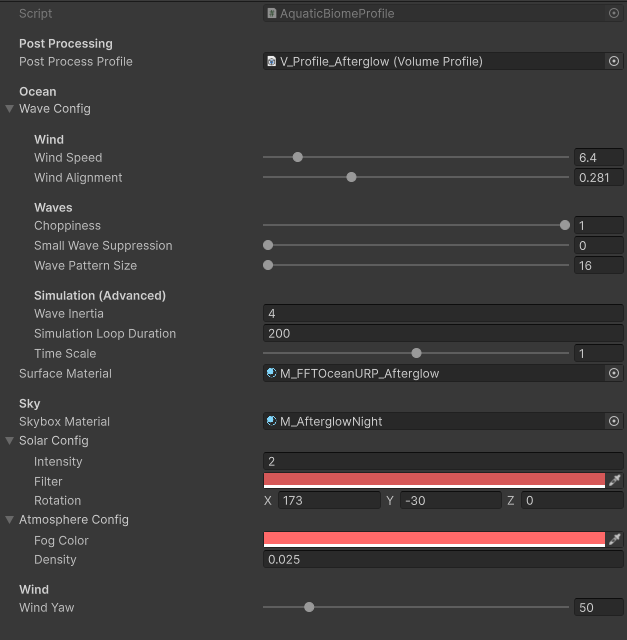 An AquaticBiomeProfile with all sections expanded
Creating a Profile
- In the Project window, right-click in your desired folder
- Select
Create > Oceanic > Environment Profile - Name the asset descriptively (e.g.,
Profile_CalmSea,Profile_Storm)
// Profiles can also be created via code (editor only)
#if UNITY_EDITOR
var profile = ScriptableObject.CreateInstance<AquaticBiomeProfile>();
UnityEditor.AssetDatabase.CreateAsset(profile, "Assets/Profiles/MyProfile.asset");
#endif
Profile Sections
Wave Config
Controls the FFT wave simulation. See Wave Settings for detailed parameter descriptions.
| Parameter | Range | Description |
|---|---|---|
| Wind Speed | 0 - 64 | Wave height and speed driver (m/s) |
| Wind Alignment | 0 - 1 | How strongly waves follow wind direction |
| Choppiness | 0 - 1 | Sharpness of wave peaks |
| Small Wave Suppression | 0 - 1 | Removes high-frequency detail |
| Wave Pattern Size | 16 - 256 | Tiling size in meters |
| Wave Inertia | 0+ | Gravity constant (default 9.81) |
| Simulation Loop Duration | 1+ | Seconds before animation loops |
| Time Scale | 0 - 2 | Simulation speed multiplier |
Surface Material
The material assigned here is used by the ocean shader. This should be a material using the Custom/FFTOceanURP_VR shader or a compatible variant.
The profile reads certain properties from this material (such as smoothness) to inform the simulation. Ensure the material is properly configured before assigning it.
Solar Config
Controls the scene's directional light settings.
| Parameter | Description |
|---|---|
| Intensity | Brightness of the sun (default 2.0) |
| Filter | Color tint applied to sunlight |
| Rotation | Euler angles for sun direction (X = elevation, Y = azimuth) |
These values are applied to RenderSettings.sun when the profile is active.
Atmosphere Config
Controls Unity's fog settings.
| Parameter | Description |
|---|---|
| Fog Color | The color of distance fog |
| Density | Exponential fog density (default 0.01) |
Skybox Material
The skybox material to use with this profile. VROcean includes two skybox shaders:
Custom/S_CloudySky_Day- Daytime sky with procedural cloudsCustom/S_StarNightSky_Night- Night sky with stars and moon
Assign a material using one of these shaders, or use your own skybox.
Wind Direction
| Parameter | Range | Description |
|---|---|---|
| Wind Yaw | 0 - 360 | Wind direction in degrees (0 = North, 90 = East, 180 = South, 270 = West) |
This value is combined with Wind Speed from Wave Config to produce the final wind vector used by the simulation.
Assigning a Profile
Profiles are assigned to the SceneSystem component:
- Select the GameObject containing
SceneSystem - Drag your profile asset into the
Target Profilefield
Switching Profiles at Runtime
Use SceneSystem.Instance.SetProfile() to change the active profile during gameplay:
using UnityEngine;
using PlatypusIdeas.VROcean.Runtime.Scripts.Scene;

public class WeatherController : MonoBehaviour
{
    [SerializeField] private AquaticBiomeProfile calmProfile;
    [SerializeField] private AquaticBiomeProfile stormProfile;

    public void SetCalm()
    {
        SceneSystem.Instance.SetProfile(calmProfile);
    }

    public void SetStormy()
    {
        SceneSystem.Instance.SetProfile(stormProfile);
    }
}
Profile changes take effect immediately. The wave spectrum regenerates when wind parameters differ from the previous profile.
Smooth Transitions
Profile switching is instant. For gradual weather transitions, you have two options:
Option 1: Intermediate Profiles
Create several profiles representing transition states and switch through them over time.
public class WeatherTransition : MonoBehaviour
{
    [SerializeField] private AquaticBiomeProfile[] transitionStages;
    [SerializeField] private float stageDuration = 2f;

    public void StartTransition()
    {
        StartCoroutine(TransitionRoutine());
    }

    private IEnumerator TransitionRoutine()
    {
        foreach (var stage in transitionStages)
        {
            SceneSystem.Instance.SetProfile(stage);
            yield return new WaitForSeconds(stageDuration);
        }
    }
}
Option 2: Runtime Property Modification
Modify profile values directly at runtime. Note that this changes the asset permanently in the editor.
// Caution: Modifies the ScriptableObject asset
profile.WaveConfig.WindSpeed = Mathf.Lerp(currentSpeed, targetSpeed, t);
For non-destructive runtime changes, create a runtime copy:
// Create a runtime instance that won't affect the original asset
var runtimeProfile = Instantiate(originalProfile);
SceneSystem.Instance.SetProfile(runtimeProfile);

// Now safe to modify
runtimeProfile.WaveConfig.WindSpeed = newValue;
Profile Versioning
Profiles include an internal Version property that increments whenever values change in the inspector. The OceanSimulator monitors this version to detect when the wave spectrum needs regeneration.
// Check if profile has been modified
int currentVersion = profile.Version;

// After modifications, version increments automatically via OnValidate
You do not need to manage this manually. It exists to optimize performance by avoiding unnecessary spectrum recalculation.
Included Example Profiles
VROcean includes several pre-configured profiles in Assets/PlatypusIdeas/VROcean/Runtime/Profiles/:
| Profile | Description |
|---|---|
Profile_CalmSea | Light winds, gentle waves, clear sky |
Profile_Moderate | Medium conditions, balanced settings |
Profile_Stormy | High winds, choppy waves, overcast |
Profile_Tropical | Warm colors, moderate waves, bright sun |
Use these as starting points or references for your own profiles.
Best Practices
One Profile Per Weather State
Create distinct profiles for each weather condition rather than modifying values at runtime. This keeps settings organized and allows easy tweaking in the inspector.
Match Skybox to Ocean
Ensure your skybox colors complement the ocean material settings. A stormy ocean looks wrong under a bright sunny sky.
Test in VR
Profile settings that look good on a monitor may feel different in VR. High choppiness and fast time scales can cause discomfort. Always test with a headset.
Use Descriptive Names
Name profiles clearly: Profile_Location_Weather (e.g., Profile_Caribbean_Calm, Profile_Arctic_Storm).
Troubleshooting
Profile Changes Have No Effect
- Verify the profile is assigned to
SceneSystem.Target Profile - Ensure you are in Play Mode (some settings only apply during play)
- Check that
OceanSimulatorandSurfaceLodRendererreferences are assigned
Wave Spectrum Does Not Update
- The spectrum regenerates when wind speed, direction, or certain wave parameters change
- Minor changes to visual-only properties (colors, smoothness) do not trigger regeneration
- Force regeneration by toggling Play Mode off and on
Materials Appear Broken After Profile Switch
- Ensure the
Surface Materialfield is assigned in the new profile - Verify the material uses a compatible shader
Next Steps
- Wave Settings - Detailed breakdown of WaveConfig parameters
- Visual Tuning - Configure material and shader properties
- Skybox Setup - Configure day and night skyboxes