Visual Tuning
This guide covers the shader and material properties that control the visual appearance of the ocean surface. These settings are configured on the ocean material, which uses the Custom/FFTOceanURP_VR shader.
Material Location
The default ocean material is located at:
Assets/PlatypusIdeas/VROcean/Runtime/Materials/M_Ocean.mat
Select this material to view its properties in the Inspector, or create a duplicate for customization.
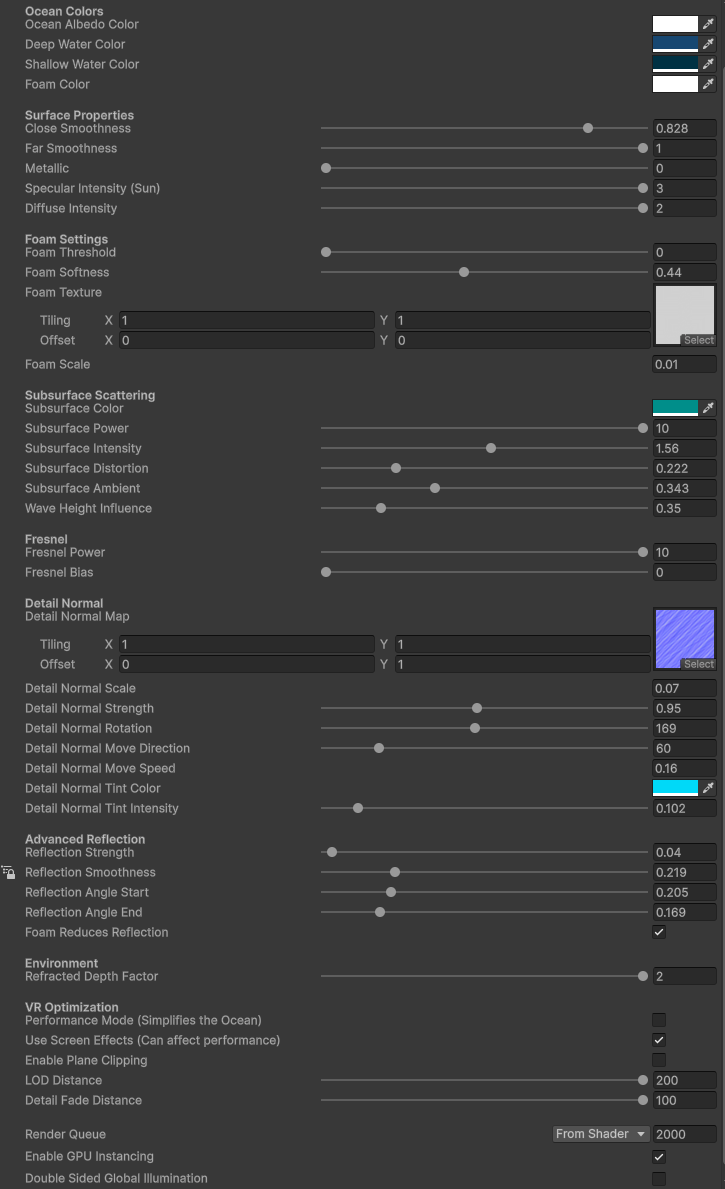 The ocean material with shader properties organized by category
Ocean Colors
Ocean Albedo Color
The base color multiplied with depth-based coloring. This tints the overall water appearance.
Default: RGB(0.02, 0.15, 0.25) - Deep blue-green
Deep Color
The color of water when looking straight down or at maximum depth.
Default: RGB(0.01, 0.08, 0.15) - Dark blue
Shallow Color
The color of water at glancing angles or shallow areas (when screen effects are enabled).
Default: RGB(0.15, 0.3, 0.35) - Teal
Foam Color
The color of foam on wave crests.
Default: RGB(0.95, 0.95, 0.95) - Near white
Surface Properties
Smoothness Close / Far
Controls surface reflectivity at different distances.
| Parameter | Range | Default | Description |
|---|---|---|---|
| Smoothness Close | 0 - 1 | 0.95 | Reflectivity for nearby water |
| Smoothness Far | 0 - 1 | 0.85 | Reflectivity for distant water |
Higher values create mirror-like reflections. Lower values create a matte, diffuse appearance. The shader interpolates between these based on distance from camera.
Metallic
Range: 0 - 1
Default: 0.0
Water is non-metallic, so this should typically remain at 0. Increasing it creates an unrealistic chrome-like appearance.
Specular Intensity
Range: 0 - 3
Default: 1.0
Multiplier for sun specular highlights. Increase for a brighter sun reflection on the water surface.
Diffuse Intensity
Range: 0 - 2
Default: 1.0
Multiplier for diffuse lighting contribution. Reduce for a darker, moodier ocean.
Foam Settings
Foam appears on wave crests where the surface folds over itself (negative Jacobian).
Foam Threshold
Range: 0 - 1
Default: 0.3
The Jacobian value below which foam appears. Lower values produce more foam.
| Value | Result |
|---|---|
| 0.1 | Foam only on extreme wave peaks |
| 0.3 | Moderate foam on crests |
| 0.6 | Foam on most wave surfaces |
Foam Softness
Range: 0.01 - 1
Default: 0.1
Controls the gradient between foam and water. Higher values create softer, more gradual foam edges.
Foam Texture
A grayscale texture that adds detail to foam. The default texture provides a bubbly, organic pattern.
Foam Scale
Default: 10.0
UV scale for the foam texture. Higher values create smaller, more detailed foam patterns.
Subsurface Scattering
Subsurface scattering (SSS) simulates light passing through thin parts of waves, creating the characteristic glow seen in ocean swells.
Subsurface Color
Default: RGB(0.1, 0.4, 0.35) - Aqua green
The color of light transmitted through waves. Typically a brighter, more saturated version of the water color.
Subsurface Power
Range: 0.1 - 10
Default: 2.0
Controls the tightness of the SSS effect. Higher values concentrate the effect to areas directly backlit by the sun.
Subsurface Intensity
Range: 0 - 3
Default: 1.0
Overall strength of the SSS effect. Set to 0 to disable completely.
Subsurface Distortion
Range: 0 - 1
Default: 0.5
How much the surface normal distorts the light direction for SSS calculation. Higher values create more variation across the surface.
Subsurface Ambient
Range: 0 - 1
Default: 0.2
Minimum SSS contribution regardless of lighting angle. Adds depth to shadowed areas.
Wave Height Influence
Range: 0 - 2
Default: 1.0
How much wave height affects SSS intensity. Higher waves have thinner crests that transmit more light.
Fresnel
The Fresnel effect controls how reflectivity changes based on viewing angle. Water reflects more at glancing angles.
Fresnel Power
Range: 0.1 - 10
Default: 5.0
Controls the falloff curve. Higher values create a sharper transition between reflective and non-reflective areas.
Fresnel Bias
Range: 0 - 1
Default: 0.02
Minimum reflectivity when looking straight down at the water. Real water has approximately 2% reflectance at normal incidence.
Detail Normal
A secondary normal map layer that adds small-scale ripple detail, visible mainly at close range.
Detail Normal Map
A tangent-space normal map texture. The default provides fine ripple patterns.
Detail Normal Scale
Default: 50.0
UV tiling for the detail normal. Higher values create smaller, more frequent ripples.
Detail Normal Strength
Range: 0 - 2
Default: 0.5
Intensity of the detail normal blending. Higher values make ripples more pronounced.
Detail Normal Rotation
Range: 0 - 360
Default: 0
Rotation of the detail normal UVs in degrees.
Detail Normal Direction
Range: 0 - 360
Default: 0
Direction of detail normal animation movement in degrees.
Detail Normal Speed
Default: 0.1
Speed of detail normal animation. Set to 0 for static ripples.
Detail Normal Tint Color
Default: RGB(0.2, 0.5, 0.6)
Color applied to areas with strong detail normal variation.
Detail Normal Tint Intensity
Range: 0 - 1
Default: 0.0
How much the tint color affects ripple areas. Set to 0 to disable tinting.
Advanced Reflection
Additional controls for environment reflections beyond the standard Fresnel model.
Reflection Strength
Range: 0 - 2
Default: 0.5
Multiplier for reflection probe contributions.
Reflection Smoothness
Range: 0 - 1
Default: 0.8
Blur level for sampled reflections. Lower values create blurrier reflections.
Reflection Angle Start / End
Range: 0 - 1
Default: 0.7 / 1.0
Controls the angular range where reflections are visible. Reflections fade out between these values based on the view angle.
Foam Kills Reflection
Toggle, Default: On
When enabled, foam reduces reflection intensity, creating a more realistic matte foam appearance.
Environment
Refracted Depth Factor
Range: 0 - 2
Default: 0.5
Controls depth-based color variation when screen effects are enabled. Higher values create more contrast between shallow and deep areas.
VR Optimization
Performance Mode
Toggle (VR_MOBILE_MODE), Default: Off
Enables simplified rendering for mobile VR. Disables:
- Detail normals
- Subsurface scattering
- Advanced reflections
- Foam texture sampling
Enable this for Quest standalone builds.
Use Screen Effects
Toggle, Default: Off
Enables depth-based refraction and coloring. Requires URP Depth Texture. Disable for better VR performance.
Use Plane Clipping
Toggle, Default: Off
Enables clip plane support for underwater camera setups.
LOD Distance
Range: 10 - 200
Default: 50
Distance at which displacement detail begins to fade.
Detail Fade Distance
Range: 10 - 100
Default: 30
Distance at which detail normals fade out completely.
Style Presets
Realistic Ocean
Ocean Albedo: (0.02, 0.12, 0.20)
Deep Color: (0.01, 0.05, 0.12)
Shallow Color: (0.08, 0.20, 0.25)
Smoothness Close: 0.95
Subsurface Color: (0.08, 0.35, 0.30)
Subsurface Intensity: 1.2
Fresnel Power: 5.0
Tropical Paradise
Ocean Albedo: (0.05, 0.25, 0.30)
Deep Color: (0.02, 0.15, 0.25)
Shallow Color: (0.20, 0.45, 0.40)
Smoothness Close: 0.92
Subsurface Color: (0.15, 0.50, 0.45)
Subsurface Intensity: 1.5
Fresnel Power: 4.0
Stormy Dark
Ocean Albedo: (0.02, 0.05, 0.08)
Deep Color: (0.01, 0.02, 0.04)
Shallow Color: (0.05, 0.10, 0.12)
Smoothness Close: 0.80
Subsurface Color: (0.03, 0.10, 0.12)
Subsurface Intensity: 0.5
Fresnel Power: 6.0
Foam Threshold: 0.2
Stylized Cartoon
Ocean Albedo: (0.10, 0.40, 0.50)
Deep Color: (0.05, 0.25, 0.35)
Shallow Color: (0.30, 0.60, 0.55)
Smoothness Close: 0.70
Subsurface Intensity: 0.0
Fresnel Power: 2.0
Detail Normal Strength: 0.0
Troubleshooting
Water Looks Too Dark
- Increase
Diffuse Intensity - Brighten
Ocean Albedo ColorandDeep Color - Ensure the directional light intensity is sufficient
Water Looks Too Bright / Washed Out
- Reduce
Diffuse Intensity - Reduce
Subsurface Intensity - Darken the color values
No Visible Reflections
- Ensure a reflection probe exists in the scene
- Increase
Reflection Strength - Check that
Smoothness Closeis high enough
Foam Looks Wrong
- Adjust
Foam Thresholdto control coverage - Modify
Foam Softnessfor edge blending - Check that
Choppinessin wave settings is high enough to generate foam
Performance Issues
- Enable
Performance Mode (VR_MOBILE_MODE) - Disable
Use Screen Effects - Reduce
Detail Normal Strengthto 0
Next Steps
- Skybox Setup - Configure day and night skies
- Wave Settings - Adjust simulation parameters
- VR Performance - Optimize for Quest