First Floating Object
This guide walks through adding buoyancy to a GameObject so it floats on the ocean surface. By the end, you will have a cube bobbing realistically on the waves.
Prerequisites
- A working ocean scene (Quick Setup)
- The scene is in Play Mode and waves are visible
Step 1: Create a Test Object
- Create a cube via
GameObject > 3D Object > Cube - Position it above the water surface (e.g., Y = 5)
- Scale it to a reasonable size (e.g., 1, 0.5, 2 for a plank shape)
Step 2: Add a Rigidbody
Buoyancy requires physics simulation.
- Select the cube
- Add a Rigidbody component via
Add Component > Physics > Rigidbody - Keep default settings for now
Step 3: Add the Buoyancy Component
- With the cube selected, click
Add Component - Search for
PhysicBasedObjectFloatation - Add the component
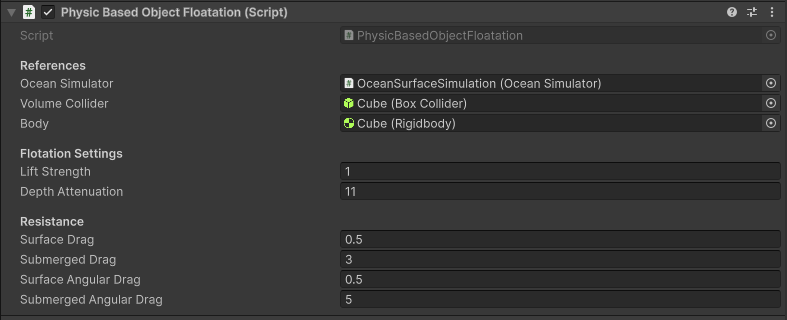 The PhysicBasedObjectFloatation component with default settings
Step 4: Assign References
The component needs references to function. If they are not auto-assigned:
| Field | Assignment |
|---|---|
| Ocean Simulator | Drag the OceanSimulator GameObject from your scene |
| Volume Collider | Drag the cube's Box Collider component |
| Body | Drag the cube's Rigidbody component |
Most fields auto-populate when you click the component's context menu and select Reset, or when first adding the component.
// The Reset method attempts to find these automatically
private void Reset()
{
    body = GetComponent<Rigidbody>();
    volumeCollider = GetComponent<Collider>();
    oceanSimulator = FindAnyObjectByType<OceanSimulator>();
}
Step 5: Enter Play Mode
Press Play. The cube should:
- Fall due to gravity
- Hit the water surface
- Bob and float on the waves
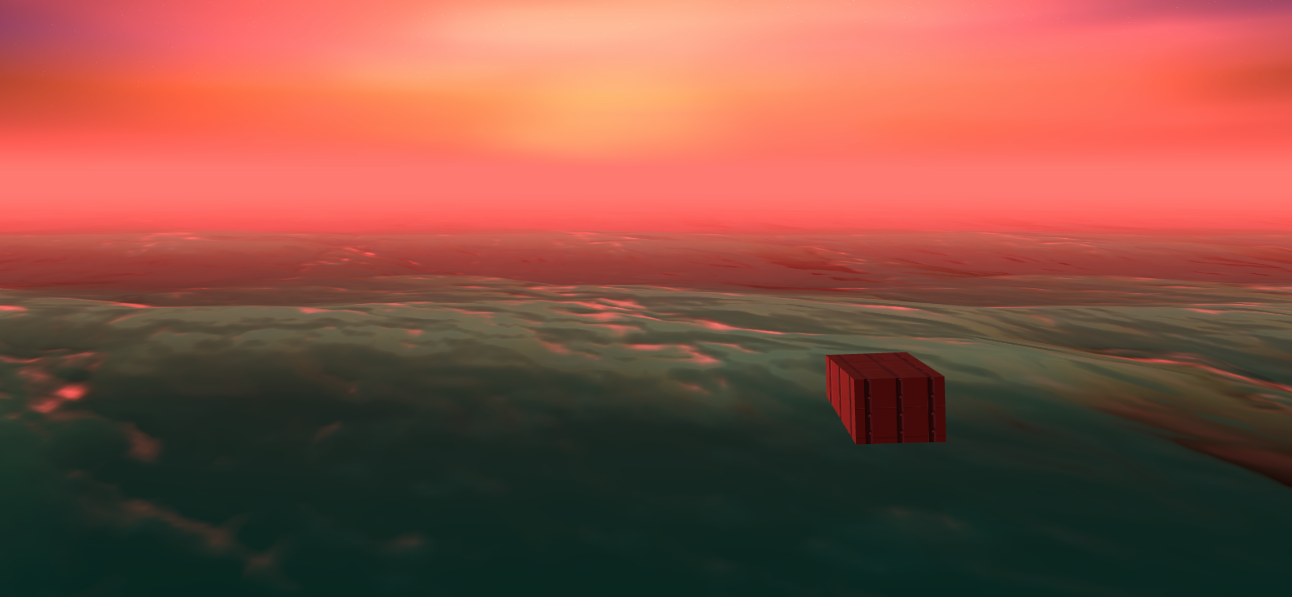 A cube floating on the ocean surface
Understanding the Parameters
Flotation Settings
| Parameter | Default | Description |
|---|---|---|
| Lift Strength | 1.0 | Buoyancy force multiplier. Increase for heavier objects or to float higher. |
| Depth Attenuation | 11.0 | Depth in meters over which force ramps from 0% to 100%. Larger values create smoother transitions. |
Resistance Settings
| Parameter | Default | Description |
|---|---|---|
| Surface Drag | 0.5 | Linear drag when above water. Low values allow sliding. |
| Submerged Drag | 3.0 | Linear drag when underwater. Higher values slow sinking. |
| Surface Angular Drag | 0.5 | Rotational resistance above water. |
| Submerged Angular Drag | 5.0 | Rotational resistance underwater. Prevents spinning. |
Tuning Buoyancy
Object Sinks Completely
Increase Lift Strength until the object floats at the desired height.
// Example: Double the buoyancy force
GetComponent<PhysicBasedObjectFloatation>().liftStrength = 2.0f;
Object Floats Too High
Decrease Lift Strength or increase the Rigidbody's mass.
Object Oscillates Wildly
Increase Depth Attenuation for a smoother force ramp, or increase drag values.
Object Rotates Uncontrollably
Increase Submerged Angular Drag to dampen rotational movement.
Visualizing Sample Points
The buoyancy component samples the water at 9 fixed points on the bottom of the object's bounds. Enable Gizmos to see these points in the Scene view.
- Select the floating object
- Ensure Gizmos are enabled in the Scene view toolbar
- The sample points appear as small spheres
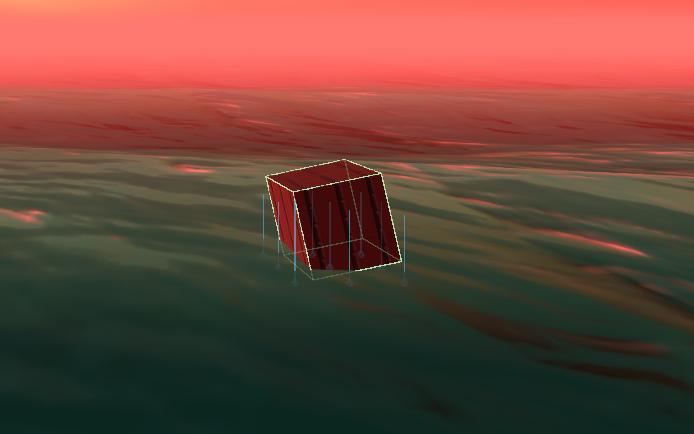 Gizmo visualization showing the 9 sample points. Blue points are submerged, gray points are above water.
Points below the water surface appear blue and have force applied. Points above the surface appear gray.
Adding Multiple Floating Objects
Each floating object needs its own buoyancy component. For scenes with many floating objects, consider using ThreadedPhysicBasedObjectFloatation instead, which uses Burst-compiled jobs for better performance.
// For many floating objects, use the threaded variant
gameObject.AddComponent<ThreadedPhysicBasedObjectFloatation>();
Code Example: Spawning Floating Debris
using UnityEngine;
using PlatypusIdeas.VROcean.Runtime.Scripts.Ocean;
using PlatypusIdeas.VROcean.Runtime.Scripts.Physics;

public class DebrisSpawner : MonoBehaviour
{
    [SerializeField] private GameObject debrisPrefab;
    [SerializeField] private OceanSimulator oceanSimulator;
    [SerializeField] private int spawnCount = 10;
    [SerializeField] private float spawnRadius = 20f;
    [SerializeField] private float spawnHeight = 5f;

    void Start()
    {
        for (int i = 0; i < spawnCount; i++)
        {
            SpawnDebris();
        }
    }

    void SpawnDebris()
    {
        // Random position within radius
        Vector2 randomCircle = Random.insideUnitCircle * spawnRadius;
        Vector3 spawnPos = new Vector3(
            transform.position.x + randomCircle.x,
            spawnHeight,
            transform.position.z + randomCircle.y
        );

        // Instantiate
        GameObject debris = Instantiate(debrisPrefab, spawnPos, Random.rotation);

        // Ensure buoyancy is configured
        var floatation = debris.GetComponent<PhysicBasedObjectFloatation>();
        if (floatation != null)
        {
            // Assign ocean simulator if not set in prefab
            floatation.oceanSimulator = oceanSimulator;
        }
    }
}
Non-Physics Floating
If you need an object to float without physics simulation (e.g., a static buoy marker), use NonPhysicBasedObjectFloatation instead:
- Remove the Rigidbody (not required)
- Add
NonPhysicBasedObjectFloatationcomponent - The object will match the water height each frame
using UnityEngine;
using PlatypusIdeas.VROcean.Runtime.Scripts.Physics;

// Simple visual floating without physics
public class FloatingMarker : MonoBehaviour
{
    void Start()
    {
        var floater = gameObject.AddComponent<NonPhysicBasedObjectFloatation>();
        // Object will now follow water surface
    }
}
This approach is more performant but does not simulate realistic physics interactions.
Troubleshooting
Object Falls Through Water
- Verify
Ocean Simulatorreference is assigned - Confirm the ocean is running (waves visible in Play Mode)
- Check that the collider bounds are reasonable
Object Does Not Move
- Ensure a
Rigidbodycomponent is attached - Verify the Rigidbody is not set to
Is Kinematic - Check that
Lift Strengthis greater than 0
Buoyancy Feels Wrong
- The 9-point sampling works best for box-shaped objects
- For complex shapes, try
ThreadedPhysicBasedObjectFloatationwith higherGrid Resolution - Very small or very large objects may need adjusted
Lift Strength
Performance Issues with Many Objects
- Switch to
ThreadedPhysicBasedObjectFloatationfor Burst-compiled sampling - Reduce the number of floating objects
- See VR Performance Guide