Surface Renderer
The SurfaceLodRenderer component handles ocean mesh rendering using a quadtree-based Level of Detail (LOD) system. It generates visible patches each frame, performs frustum culling, and renders using GPU instancing.
Overview
The renderer implements several optimization techniques:
- Quadtree LOD - Subdivides the ocean surface based on camera distance
- Frustum Culling - Only renders patches visible to the camera
- Instanced Rendering - Batches patches to minimize draw calls
- Seam Stitching - Uses 16 mesh variants to prevent T-junction artifacts
- Horizon Skirting - Extends the ocean to the horizon without extra geometry
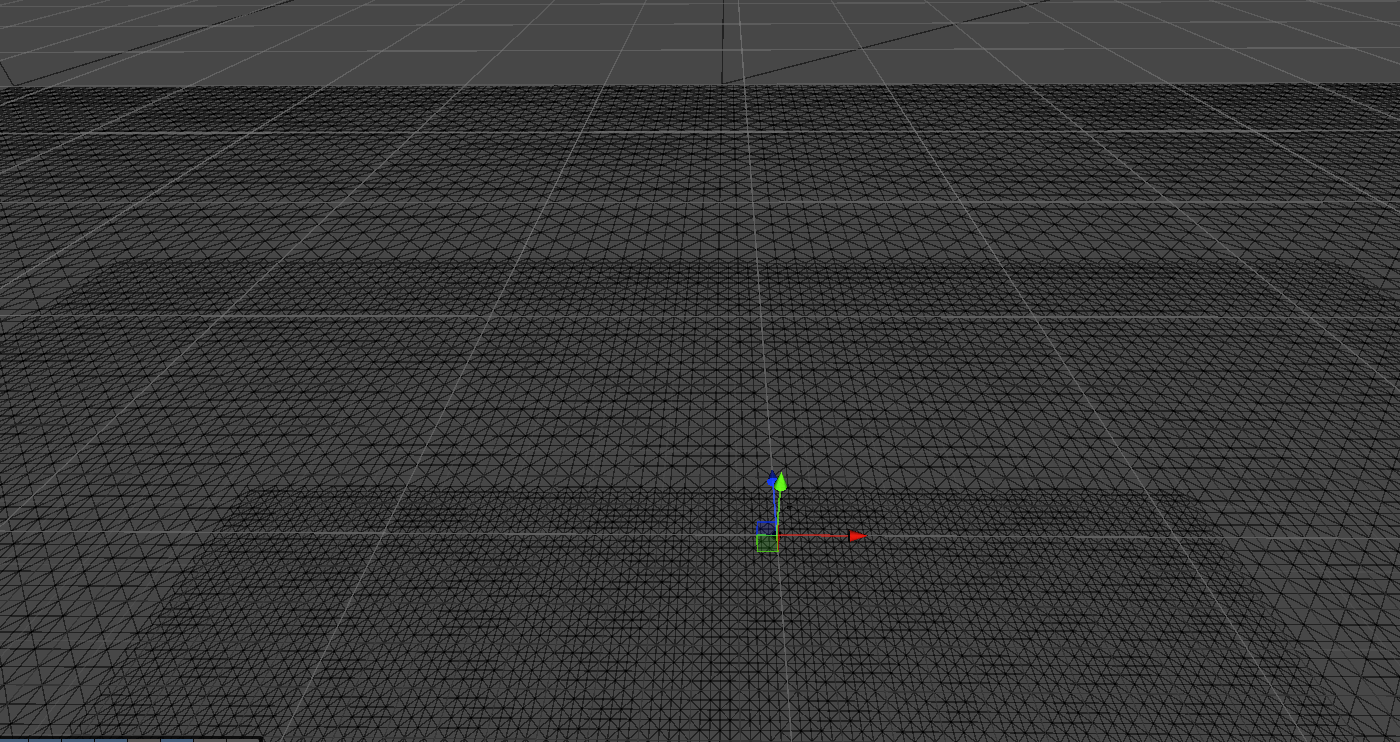 Quadtree subdivision showing higher detail near camera (wireframe view)
Adding to Scene
- Create a GameObject as a child of your ocean system root
- Name it
SurfaceRenderer - Add the
SurfaceLodRenderercomponent - Assign the ocean material
using UnityEngine;
using PlatypusIdeas.VROcean.Runtime.Scripts.Ocean;

GameObject renderGo = new GameObject("SurfaceRenderer");
SurfaceLodRenderer renderer = renderGo.AddComponent<SurfaceLodRenderer>();
renderer.SurfaceMaterial = oceanMaterial;
renderer.OceanSize = 1024f;
renderer.Quality = SurfaceLodRenderer.QualityLevel.Medium;
Inspector Fields
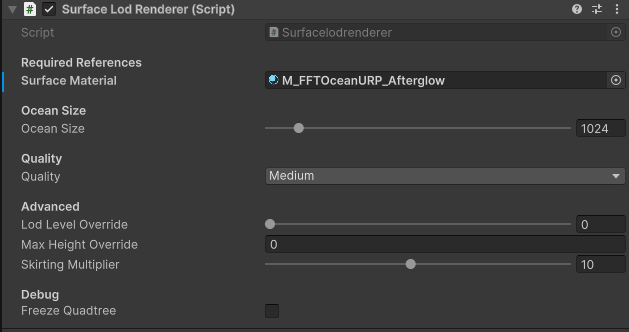 SurfaceLodRenderer component with all settings
Required References
| Field | Type | Description |
|---|---|---|
| Surface Material | Material | Ocean shader material for rendering |
Ocean Size
| Field | Range | Default | Description |
|---|---|---|---|
| Ocean Size | 256 - 8192 | 1024 | Total ocean extent in world units |
The ocean is centered on the camera position and extends OceanSize / 2 in each direction.
Quality
| Field | Type | Description |
|---|---|---|
| Quality | QualityLevel | Preset controlling mesh density and LOD behavior |
Advanced
| Field | Range | Default | Description |
|---|---|---|---|
| LOD Level Override | 0 - 12 | 0 | Manual LOD depth (0 = automatic) |
| Max Height Override | 0+ | 0 | Manual culling bounds height (0 = automatic) |
| Skirting Multiplier | 1 - 20 | 10 | Horizon extension scale |
Debug (Editor Only)
| Field | Type | Description |
|---|---|---|
| Freeze Quadtree | bool | Stop LOD updates for debugging |
Quality Presets
The Quality setting controls mesh density and LOD transition distances.
| Preset | Vertices Per Patch | LOD Threshold | Cull Scale | Best For |
|---|---|---|---|---|
| Low | 16 | 2.0 | 1.2 | Quest standalone, low-end |
| Medium | 32 | 1.5 | 1.5 | Quest, balanced |
| High | 64 | 1.2 | 1.8 | PC VR |
| Ultra | 64 | 1.0 | 2.0 | High-end PC |
Vertices Per Patch: Grid resolution of each rendered patch. Higher values create smoother surfaces but more triangles.
LOD Threshold: Distance multiplier for LOD transitions. Lower values increase detail at distance but render more patches.
Cull Scale: Multiplier for frustum culling bounds. Higher values reduce popping at screen edges but may render off-screen patches.
// Set quality based on platform
#if UNITY_ANDROID
    renderer.Quality = SurfaceLodRenderer.QualityLevel.Low;
#elif UNITY_STANDALONE
    renderer.Quality = SurfaceLodRenderer.QualityLevel.High;
#endif
Public Properties
SurfaceMaterial
public Material SurfaceMaterial { get; set; }
The material used for ocean rendering. Changing this invalidates the cache and triggers a rebuild.
// Switch materials at runtime
renderer.SurfaceMaterial = stormyOceanMaterial;
OceanSize
public float OceanSize { get; set; }
Total ocean extent in world units. Clamped to 256-8192 range.
// Expand ocean for open-world scenarios
renderer.OceanSize = 4096f;
Quality
public QualityLevel Quality { get; set; }
Current quality preset. Changes trigger mesh rebuild.
// Dynamic quality adjustment
if (frameRate < 72f)
{
    renderer.Quality = SurfaceLodRenderer.QualityLevel.Low;
}
Version
public int Version { get; set; }
Internal version counter. Increment to force mesh rebuild.
// Force rebuild after parameter changes
renderer.Version++;
Public Methods
RenderForCameras
public void RenderForCameras(List<Camera> cameras, MaterialPropertyBlock propertyBlock)
Main rendering entry point. Called by SceneSystem during the render pipeline callback.
// Manual rendering (if not using SceneSystem)
List<Camera> cameras = new List<Camera> { Camera.main };
MaterialPropertyBlock props = new MaterialPropertyBlock();

// Set required properties
props.SetFloat("_OceanRcpScale", 1f / wavePatternSize);
props.SetFloat("_OceanChoppiness", choppiness);

renderer.RenderForCameras(cameras, props);
The method:
- Rebuilds meshes if version changed
- Updates quadtree for each camera
- Submits visible patches via
Graphics.DrawMeshInstanced - Renders horizon skirting geometry
How Quadtree LOD Works
Traversal
Each frame, the renderer traverses a quadtree starting from a single root node covering the entire ocean:
- Calculate node center and size
- Measure distance from camera to node
- If close enough, subdivide into 4 children
- If far enough or at max depth, render the node
- Record LOD level in subdivision map for seam stitching
Level 0:  [          Root          ]
              ↓ subdivide
Level 1:  [ NW ][ NE ][ SW ][ SE ]
              ↓ subdivide near camera
Level 2:  [NW][NE][SW][SE] ...
LOD Selection
The subdivision threshold is calculated as:
threshold = nodeSize * LODThreshold
shouldSubdivide = distanceToCamera < threshold
Lower LODThreshold values cause subdivision at greater distances, increasing detail.
Seam Stitching
When adjacent patches have different LOD levels, their edges have different vertex counts. This creates T-junction artifacts (gaps or cracks).
The renderer solves this with 16 pre-computed mesh variants, one for each combination of edge conditions:
| Flag | Direction | Meaning |
|---|---|---|
| East | +X | Neighbor has coarser LOD |
| North | +Z | Neighbor has coarser LOD |
| West | -X | Neighbor has coarser LOD |
| South | -Z | Neighbor has coarser LOD |
// 16 combinations: None, East, North, North|East, West, ...
[Flags]
public enum AdjacentLodFlags
{
    None = 0,
    East = 1,
    North = 2,
    West = 4,
    South = 8
}
Each variant has adjusted edge triangulation that matches the coarser neighbor.
Horizon Skirting
Beyond the detailed LOD region, the renderer draws simple quad strips extending to the horizon. This creates the illusion of infinite ocean without the cost of rendering distant patches.
Skirting geometry:
- Extends from
OceanSize / 2toOceanSize * SkirtingMultiplier / 2 - Rendered in 4 directions (N, E, S, W)
- Uses the same material but no displacement sampling
// Adjust horizon distance
renderer.SkirtingMultiplier = 15f; // Extends to 15x ocean size
Instanced Rendering
Visible patches are batched by mesh variant and rendered with Graphics.DrawMeshInstanced:
// Internal batching (simplified)
Matrix4x4[][] instanceMatrices = new Matrix4x4[16][]; // 16 submeshes
int[] instanceCounts = new int[16];

// For each visible patch
int submeshIndex = (int)adjacentFlags;
instanceMatrices[submeshIndex][count] = patchMatrix;
instanceCounts[submeshIndex]++;

// Render each batch
for (int i = 0; i < 16; i++)
{
    if (instanceCounts[i] > 0)
    {
        Graphics.DrawMeshInstanced(
            patchMesh,
            i,  // submesh index
            material,
            instanceMatrices[i],
            instanceCounts[i],
            propertyBlock
        );
    }
}
Maximum instances per batch: 128. Exceeding this logs a warning.
Frustum Culling
Each patch is tested against the camera frustum before rendering:
// Culling test (simplified)
bool IsNodeVisible(Vector3 center, float size)
{
    Vector3 extents = new Vector3(
        size * cullScale * 0.5f,
        maxHeight * 0.5f,
        size * cullScale * 0.5f
    );

    // Test against 6 frustum planes
    for (int i = 0; i < 6; i++)
    {
        Vector4 plane = frustumPlanes[i];
        Vector3 testPoint = GetFarthestPointInDirection(center, extents, plane);

        if (Vector3.Dot(testPoint, plane) + plane.w < 0)
            return false; // Outside frustum
    }
    return true;
}
The Cull Scale quality parameter expands culling bounds to prevent popping at screen edges.
Performance
Draw Call Efficiency
| Scenario | Approximate Draw Calls |
|---|---|
| Looking at horizon | 8-16 |
| Looking down at water | 16-32 |
| Complex scene with reflections | 32-64 |
Instancing keeps draw calls low regardless of visible patch count.
Vertex Count by Quality
| Quality | Vertices/Patch | Typical Patches | Total Vertices |
|---|---|---|---|
| Low | 289 | 20-40 | 5,780 - 11,560 |
| Medium | 1,089 | 20-40 | 21,780 - 43,560 |
| High | 4,225 | 20-40 | 84,500 - 169,000 |
| Ultra | 4,225 | 30-60 | 126,750 - 253,500 |
Optimization Tips
Reduce ocean size when possible:
// Smaller ocean = fewer LOD levels = faster traversal
renderer.OceanSize = 512f; // Instead of default 1024
Use appropriate quality:
// Match quality to viewing conditions
if (cameraIsUnderwater)
{
    renderer.Quality = QualityLevel.Low; // Less visible detail needed
}
Limit LOD levels:
// Manual LOD cap for consistent performance
renderer.LodLevelOverride = 5; // Max 5 levels regardless of ocean size
Camera Types
The renderer processes specific camera types:
| Camera Type | Rendered |
|---|---|
| Game | Yes |
| SceneView | Yes |
| Reflection | Yes |
| Preview | No |
| VR | No (handled as Game) |
// Internal camera filter
if (cam.cameraType is not CameraType.Game
    and not CameraType.SceneView
    and not CameraType.Reflection)
{
    continue; // Skip this camera
}
Debugging
Freeze Quadtree
Enable Freeze Quadtree in the inspector to stop LOD updates. Useful for:
- Inspecting current subdivision
- Testing seam stitching
- Performance profiling without traversal overhead
Visualizing LOD
The subdivision map stores LOD levels per cell. Access for debugging:
// Note: _subdivisionMap is private, but you can visualize via shader
// Pass LOD data to shader for color-coded rendering
Profiler Markers
The renderer includes profiler markers:
LOD Traversal- Quadtree traversal timePatch Submission- Matrix building time
View in Unity Profiler under "Scripts".
Troubleshooting
Ocean Not Visible
- Verify
Surface Materialis assigned - Check camera is within
OceanSizerange - Ensure
RenderForCamerasis being called (via SceneSystem or manually)
Gaps Between Patches
- Seam stitching mesh variants may not be generated
- Force rebuild by incrementing
Version - Check that all 16 submeshes exist in the patch mesh
Low Frame Rate
- Reduce
Qualitypreset - Decrease
OceanSize - Increase LOD threshold (reduces detail at distance)
Patches Popping In/Out
- Increase
Cull Scalein quality preset - Check for camera near plane issues
- Verify
Max Height Overridecovers actual wave height
Horizon Looks Wrong
- Adjust
Skirting Multiplier(increase for further horizon) - Ensure skybox blends with ocean at horizon
- Check fog settings
Next Steps
- Ocean Simulator - FFT simulation
- Quality Presets - Detailed preset tuning