Custom Minimal Setup
Get AirPath running in your scene in under 5 minutes. This guide covers the minimal setup required to calculate your first aerial path.
Prerequisites
- AirPath installed in your project
- A scene with a Unity Terrain
You can quickly create a terrain via GameObject → 3D Object → Terrain. For testing, a flat terrain works fine — AirPath will still calculate paths.
Step 1: Create Configuration Assets
AirPath uses ScriptableObject assets for configuration. Let's create the required configs:
Pathfinding Configuration
- Right-click in your Project window
- Select Create → Pathfinding → Configurations → Pathfinding Configuration
- Name it
PathfindingConfig
Leave the default values for now. Key settings you can adjust later:
| Setting | Default | Description |
|---|---|---|
| Samples Per Dimension | 64 | Grid resolution (64×64 = 4,096 cells) |
| Fly Cost Multiplier | 2.5 | How much to penalize high-altitude paths |
| Auto Clamp Out Of Bounds | true | Automatically fix out-of-bounds positions |
Step 2: Create the Event Bus Asset
AirPath uses an event system for communication between components.
- Right-click in your Project window
- Select Create → EventSystem → PathfindingEventBus
- Name it
PathfindingEventBus
Step 3: Set Up the Scene
Now let's add the required components to your scene.
Add the Event Bus Handler
- Create an empty GameObject: GameObject → Create Empty
- Name it
EventBusHandler - Add the
EventBusUpdateHandlercomponent - Assign your
PathfindingEventBusasset to the Event Bus Asset field - Enable Persist Across Scenes if you want it to survive scene loads
Add the Height Provider
- Select your Terrain GameObject
- Add the
TerrainHeightProvidercomponent - The Terrain field should auto-populate (it's a required component)
- Assign your
PathfindingConfigasset to the Pathfinding Config field
Add the Pathfinding Manager
- Create an empty GameObject: GameObject → Create Empty
- Name it
PathfindingManager - Add the
PathfindingManagercomponent - Assign references:
- Height Provider: Your Terrain's
TerrainHeightProvider - Terrain Controller: (Optional) For visualization features
- Height Provider: Your Terrain's
- Set Starting Mode to
MouseClickfor testing
Step 4: Test It
- Press Play
- Click on the terrain to set a start point (green marker appears)
- Click again to set an end point and calculate the path
You should see:
- Console logs showing path calculation time
- The path calculated between your two points
[PathfindingService] Initialized with grid size 64x64, cell size: 15.625, flyCostMultiplier: 2.5
[PathfindingService] Path found: 45 waypoints in 2ms
Minimal Scene Hierarchy
Your scene hierarchy should look like this:
Scene
├── EventBusHandler          (EventBusUpdateHandler)
├── Terrain                  (Terrain + TerrainHeightProvider)
├── PathfindingManager       (PathfindingManager)
└── Main Camera
Complete Minimal Setup Code
If you prefer to set things up via code, here's how to initialize AirPath programmatically:
using PlatypusIdeas.AirPath.Runtime.Core.Grid;
using PlatypusIdeas.AirPath.Runtime.Core.Pathfinding;
using PlatypusIdeas.AirPath.Runtime.Core.Terrain;
using UnityEngine;

public class MinimalAirPathSetup : MonoBehaviour
{
    [SerializeField] private TerrainHeightProvider heightProvider;

    private PathfindingService _pathfindingService;

    void Start()
    {
        // Create grid configuration
        var config = new GridConfiguration(
            width: heightProvider.GridWidth,
            height: heightProvider.GridHeight,
            cellSize: heightProvider.CellSize,
            origin: heightProvider.Origin,
            flyCostMultiplier: 2.5f
        );

        // Initialize pathfinding service
        _pathfindingService = gameObject.AddComponent<PathfindingService>();
        _pathfindingService.Initialize(config, heightProvider);
    }

    public void CalculateTestPath()
    {
        // Calculate a path from world positions
        var path = _pathfindingService.CalculatePath(
            worldStart: new Vector3(100, 0, 100),
            worldEnd: new Vector3(400, 0, 400),
            heightOffset: 10f  // Fly 10 units above terrain
        );

        if (path != null)
        {
            Debug.Log($"Path found with {path.Count} waypoints!");
            foreach (var point in path)
            {
                Debug.Log($"  → {point}");
            }
        }
    }
}
About the Terrain Setup
In the demo scene, you'll notice the Terrain GameObject has a TerrainController component attached. It's important to understand that this component is not required for AirPath to function.
TerrainController (Demo Only)
The TerrainController is our demo-specific implementation that provides:
- Debug visualization (heatmap grid overlay)
- Path cell coloring for visual feedback
- Runtime grid visibility toggling
This component exists purely for demonstration and debugging purposes. You are free to replace it with your own terrain management solution or remove it entirely in production.
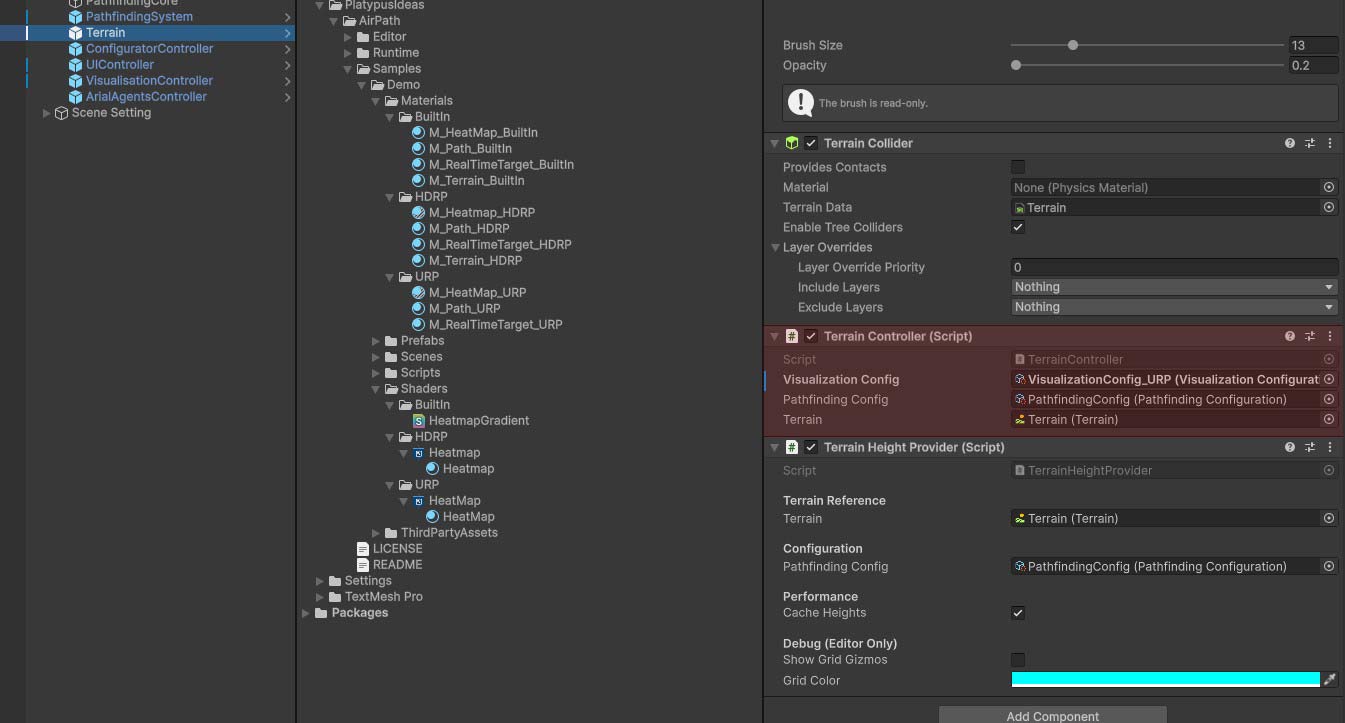
TerrainHeightProvider (Required)
The only terrain-related component that AirPath actually requires is the TerrainHeightProvider. This component is responsible for supplying terrain height data to the pathfinding system.
TerrainHeightProvider = Required for pathfinding to work
TerrainController = Optional demo helper for visualization
If you're integrating AirPath into your own project and already have terrain management in place, you only need to ensure that a TerrainHeightProvider is configured. The visualization features from TerrainController can be useful during development but should typically be disabled or removed for release builds.
What's Next?
You now have a working AirPath setup! Here's where to go from here:
- Core Concepts — Understand how AirPath works
- Swarm Integration — Make agents follow the calculated paths
Troubleshooting Quick Start
"PathfindingEventBus instance not initialized"
Make sure you have an EventBusUpdateHandler component in your scene with the PathfindingEventBus asset assigned.
"heightProvider cannot be null"
The PathfindingManager needs a reference to a TerrainHeightProvider. Make sure:
- Your Terrain has the
TerrainHeightProvidercomponent - You've assigned it to the PathfindingManager's Height Provider field
Path is always null
Check that:
- Your start and end positions are within the terrain bounds
- The
PathfindingConfigurationasset is assigned to the height provider - Console shows "Initialized with grid size..." on Play
Performance is slow
For the quick start, try reducing the grid resolution:
- Select your
PathfindingConfigasset - Lower Samples Per Dimension to 32 (32×32 = 1,024 cells)
See Performance Tuning for detailed optimization guidance.